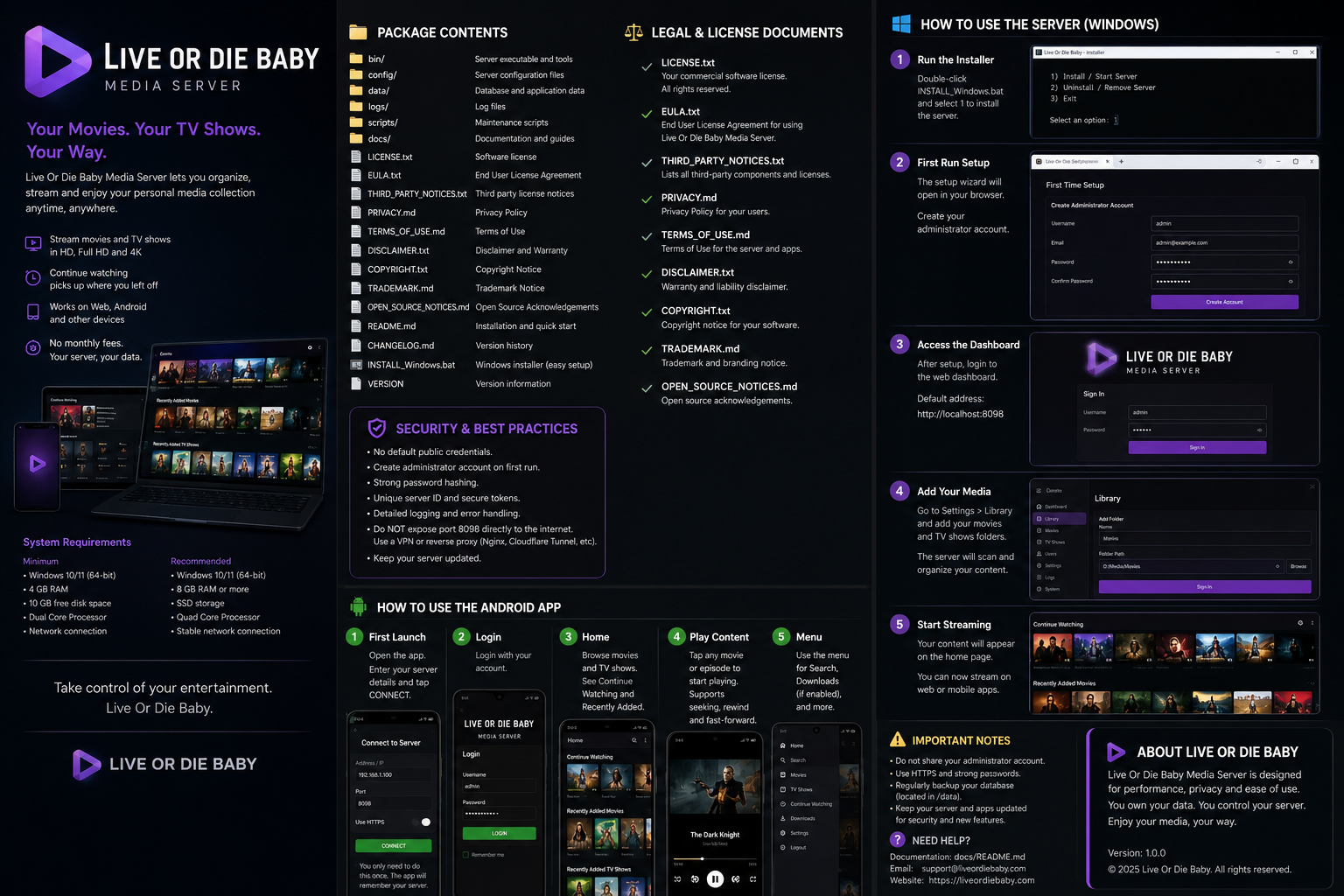
Install, configure and start streaming
Follow these steps on the Windows computer that will store or access your media library.
Install the server
Run LiveOrDieBaby_Setup.exe. Choose the installation folder, shortcuts and firewall option. When setup finishes, start the server.
Create the administrator
The browser opens the first-run setup page. Create a unique administrator username and a strong password. Store these details securely.
Add Movies and TV Shows
Open Settings or Library management, select the correct library type and browse to the folder containing your files. Keep movies and TV shows in separate folders for the best matching.
D:\Media\TV Shows\Series Name\Season 01\Series Name - S01E01.mkv
Scan the library
Start a library scan. The progress display shows discovery, processing, the number of items found and completion percentage. You can continue using the server while the background scan runs.
Play in the browser
Open Home, Movies or TV Shows, select a title and press Play. Compatible files use direct play; other formats may be transcoded by FFmpeg for the device.
Find the Machine ID
Open License in the server menu. Copy the displayed Machine ID and send it with the customer name, email address and purchased licence type to support@liveordiebaby.com.